How to add webchat to your website?
Webchat allows your business to add a chatbot on your website that doesn’t depend on any other platform like Facebook, Telegram, WhatsApp, or Google. Your customers don’t need to create an account to interact with your chatbot.
Adding the code to your website
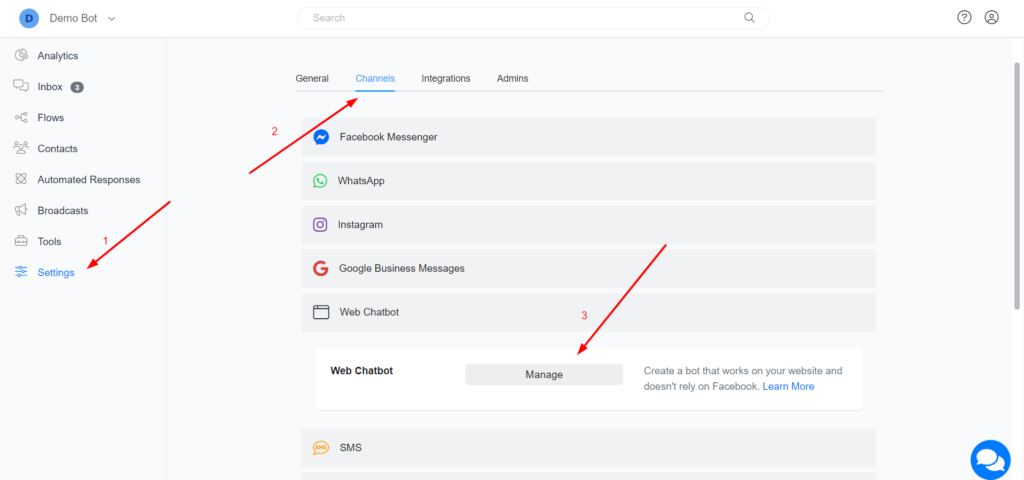
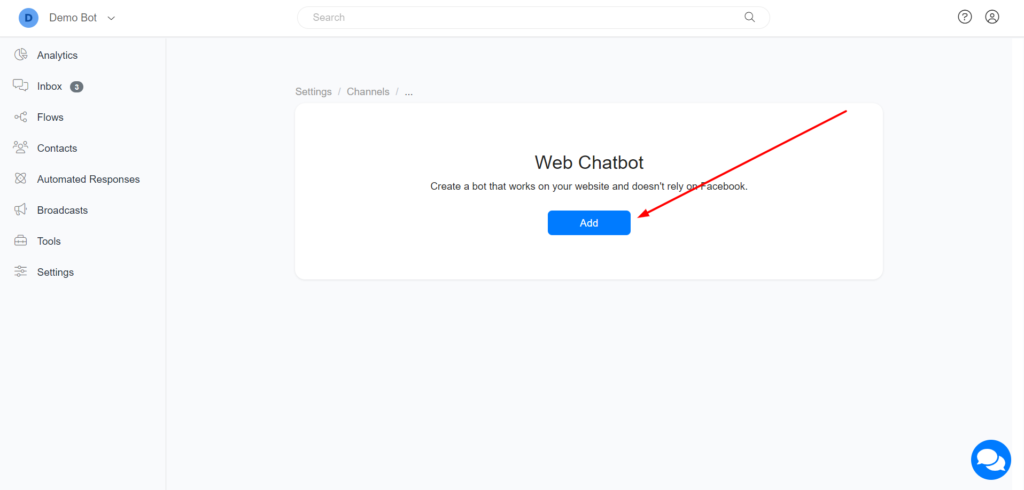
1 – Navigate to Settings > Channels > Webchat > Manage and create your webchat.
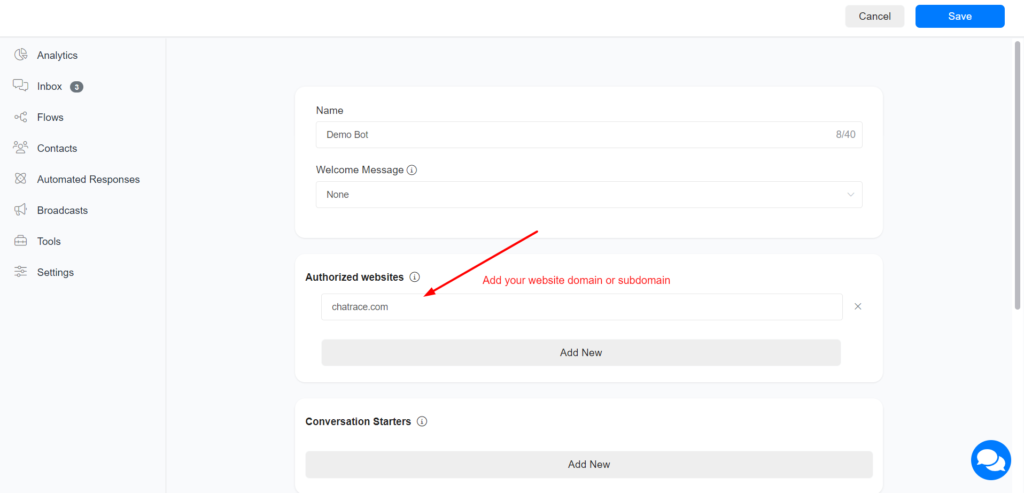
Add your website domain or subdomain to the Authorized websites. The webchat will only load on authorized websites.
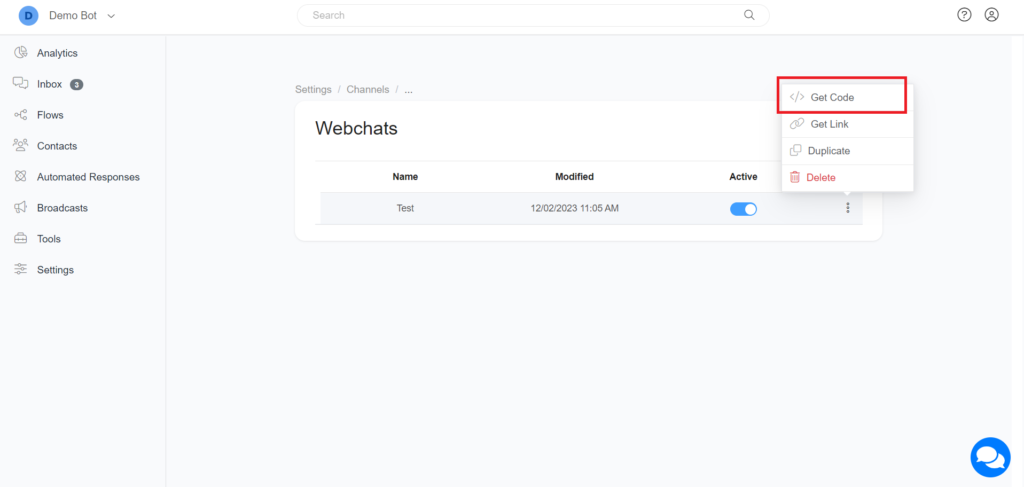
After creating your Webchat, click 3 dots and get the code.
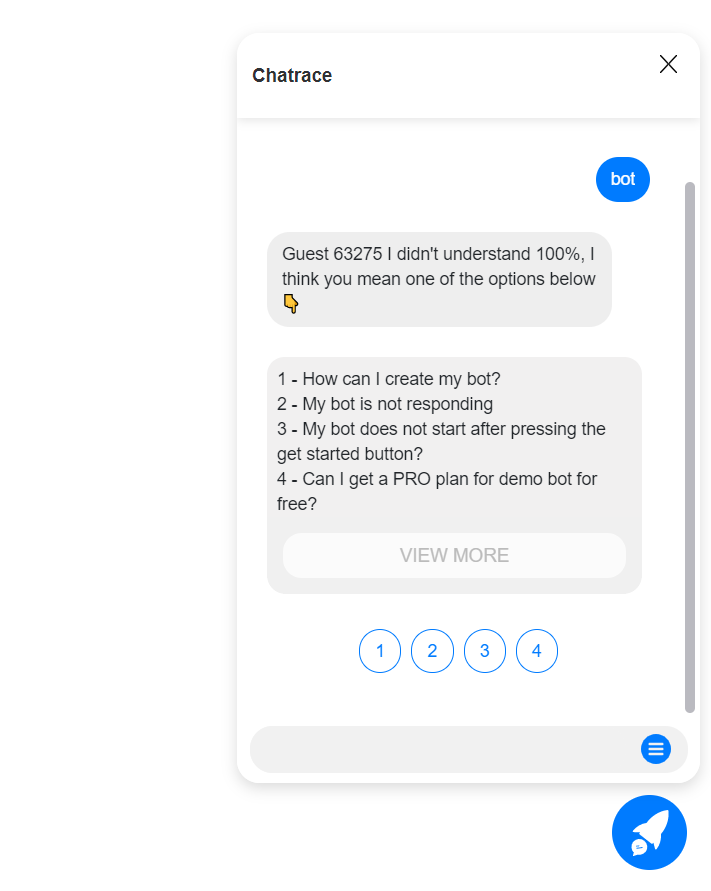
Use web chat as a single-page
Click the 3 dots and “Get Link”.
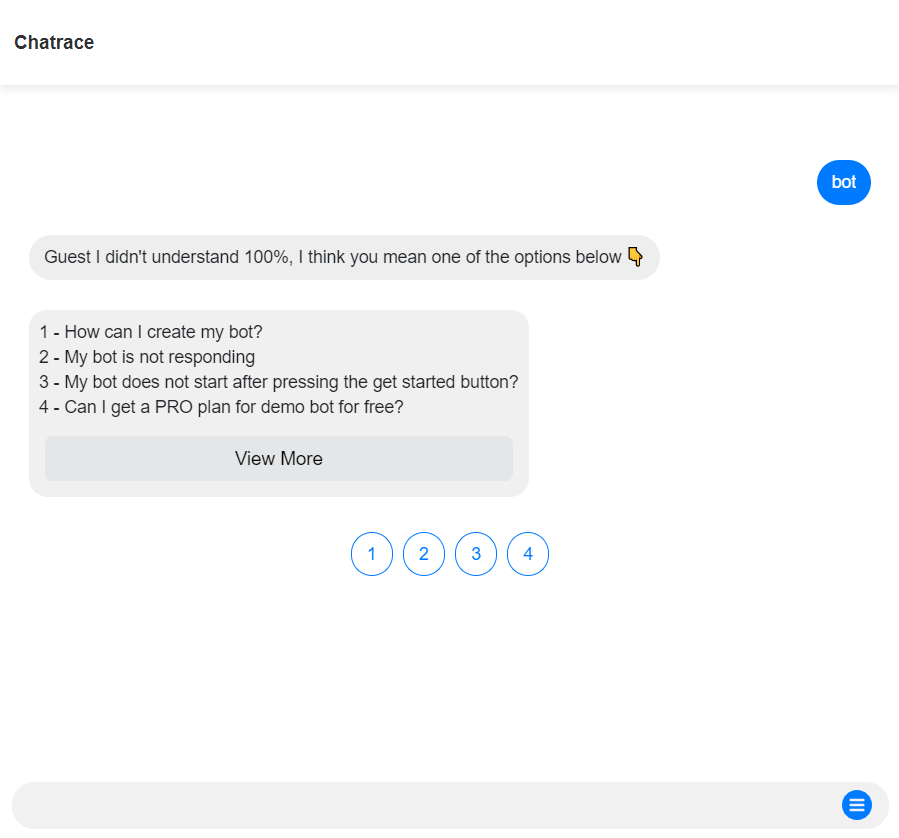
The webchat plugin is very flexible and allows many customizations
| Option Name | Possible Values/Description | Default |
| type | floating/window/container container: include the chatbot inside any HTML element window: the chatbot will open on a new window |
floating |
| element | Only used if “type” is “container”. example “#div1” | |
| headerTitle | The title that is shown on the header of the webchat | Account Name |
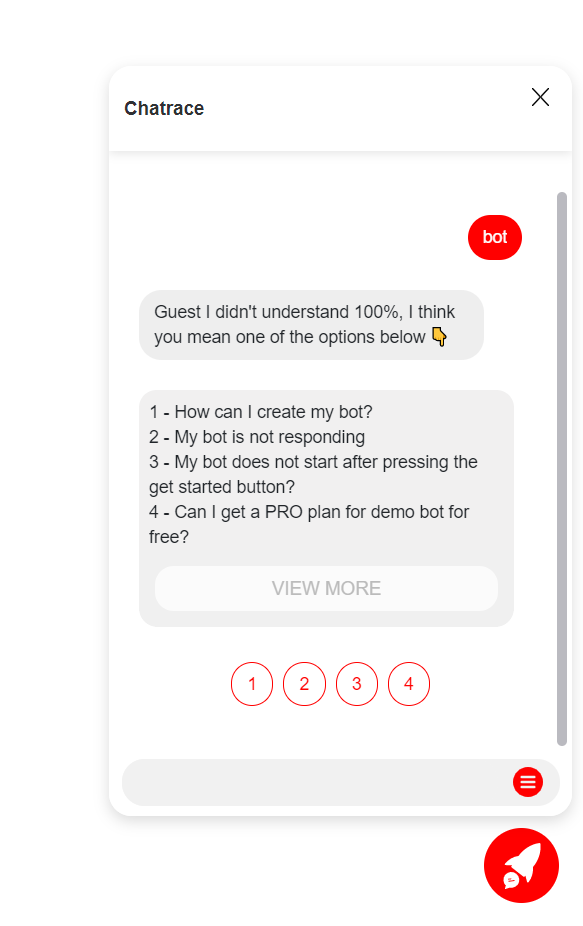
| color | any color name or color code | #007BFF |
| hideHeader | Hide the session that contains the business name true/false |
false |
| ref | any ref/flow/step ID to be sent automatically once the user clicks on the chat ICON. Set ref as “get_started_button” to automatically |
|
| showPersona | true/false | false |
| hideComposer | true/false | false |
| template | template1/template2 | |
| icon | the chat icon that shows on the bottom | right | |
| right | Distance of the icon from the left edge of the screen | 20px |
| bottom | Distance of the icon from the bottom edge of the screen | 20px |
| loadMessages | Load past conversations with the contact when webchat is opened. true/false | true |
| setCustomFields | Allow to set multiple custom fields. id: Custom Field ID You can use a system field name as ID: email, phone, full_name, first_name,last_name |
[{id:”email”, value:”…@gmail.com”}, {id:348574, value:”Value here”}] |
Changing Color
Changing template
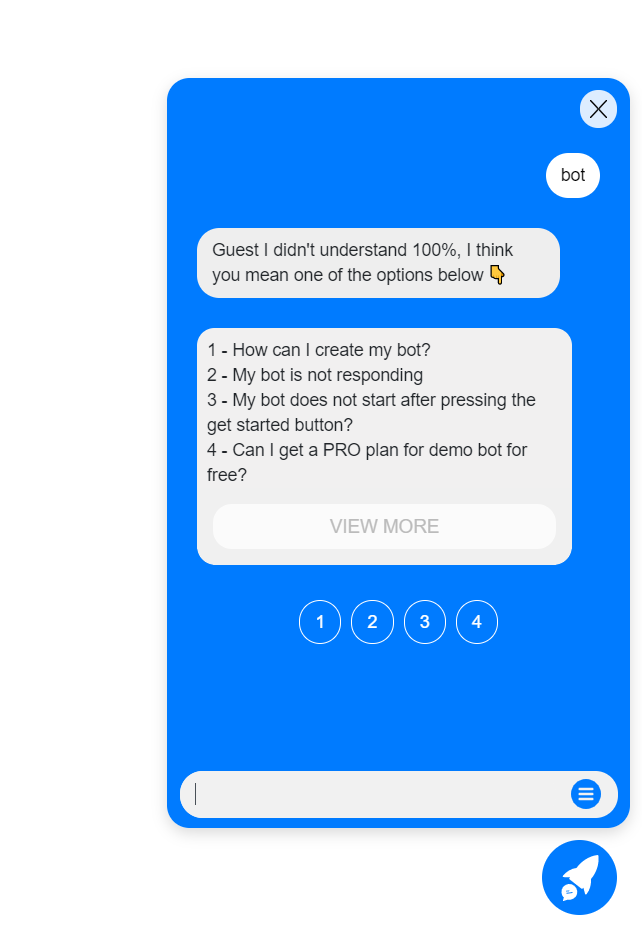
Currently, we offer only 3 templates for the webchat. We will create more templates soon.
template1
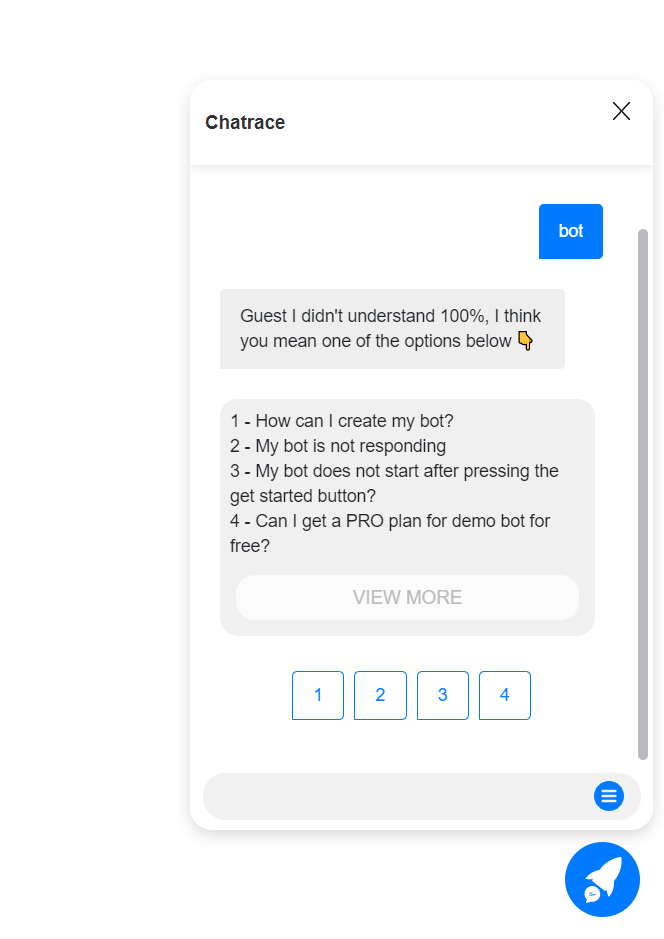
template2
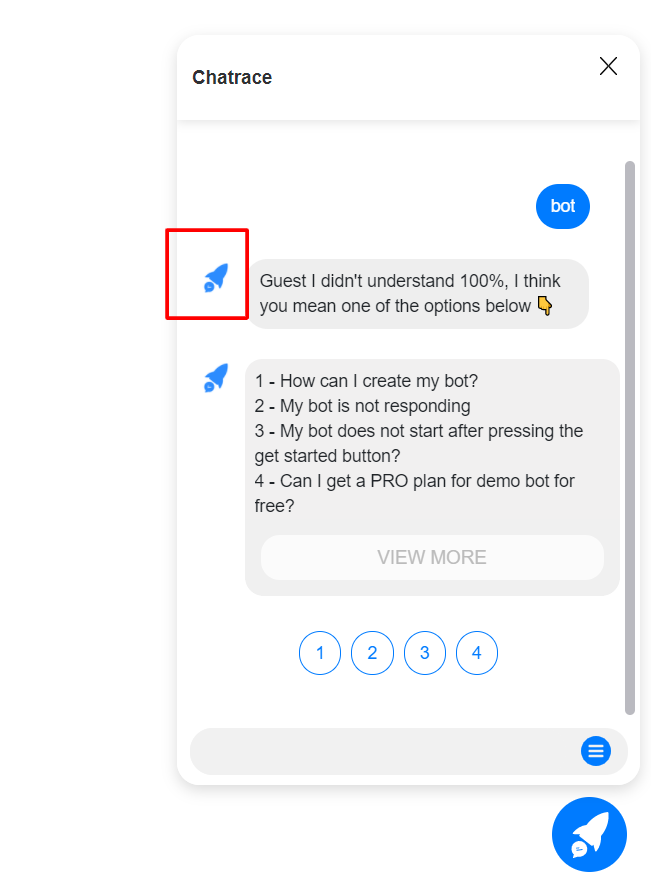
Show the account profile image as a persona.
Change the chat icon.
<script src="https://web.dashboard.comechat.app/webchat/plugin.js?v=2"></script>
<script>
      ktt10.setup({id: WEBCHAT_HASH, accountId: YOUR_ACCOUNT_ID, showPersona: true, icon: "YOUR_IMAGE_URL"});
</script>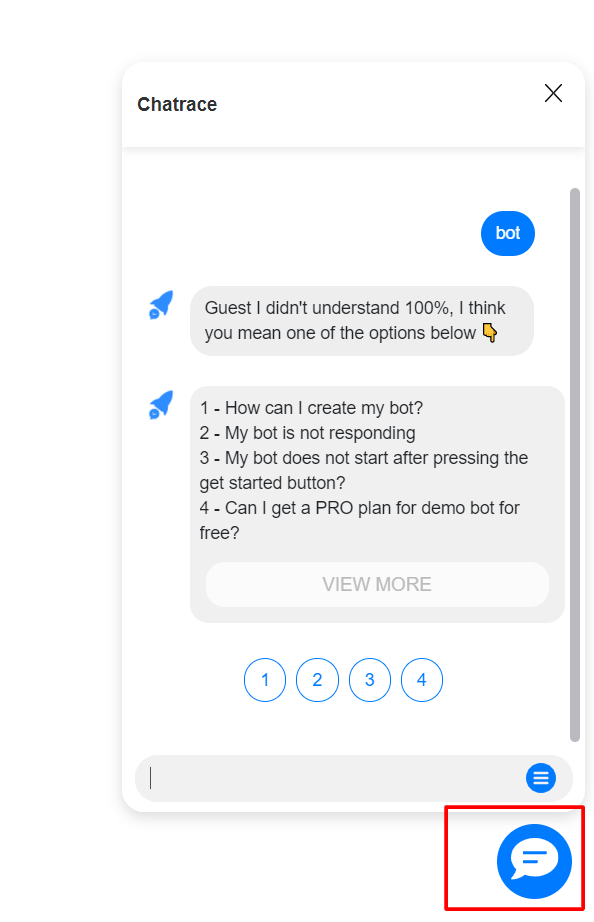
Handover the conversation from any channel to webchat.
Not all channels support all the features that Webchat supports. For example, if a customer is messaging your business on SMS and you want to show a gallery with a list of your services, you could transfer the conversation to the webchat. Just send the user a message with the below system custom field.
{{webchat}}
If you want to automatically start a flow or step when the user accesses this link, you will need to append &ref=FLOW_OR_STEP_ID. For example, if the FLOW_ID is 111111 the link will be
{{webchat}}&ref=111111
The link above will load previous messages from the conversation between the bot and the user. If you don’t want to load old messages, append &lc=0 by the end of the link
{{webchat}}&ref=111111&lc=0